Wednesday, January 29, 2014

How to split up PDF files - part 2

In an earlier post, I used the pdftk tool to extract pages from a pdf file. I had no reason to investigate alternative solutions until I encountered the following problem.

I had to extract the first 4 pages of a pdf document. The normally reliable pdftk command generated a Java exception.

$ pdftk T4.pdf cat 1-4  output outputT4.pdf
Unhandled Java Exception:
java.lang.NullPointerException
   at gnu.gcj.runtime.NameFinder.lookup(libgcj.so.12)
   at java.lang.Throwable.getStackTrace(libgcj.so.12)
   at java.lang.Throwable.stackTraceString(libgcj.so.12)
   at java.lang.Throwable.printStackTrace(libgcj.so.12)
   at java.lang.Throwable.printStackTrace(libgcj.so.12)

To troubleshoot the problem, I executed the pdftk command using a different input pdf file. It worked just fine. The problem appears to be the specific input pdf file.

At that point, I started looking for an alternative tool.

gs, aka Ghostscript, is a previewer for PDF as well as PostScript files.

You can direct gs output to various output devices using the -sDEVICE parameter. The pdfwrite device specifies that the output will be in PDF file format.

The page range to extract is defined by -dFirstPage and -dLastPage parameters. The name of the output file is specified using -sOutputFile parameter.

$ gs -sDEVICE=pdfwrite -dNOPAUSE -dBATCH -dSAFER -dFirstPage=1 
-dLastPage=4 -sOutputFile=outputT4.pdf T4.pdf
GPL Ghostscript 9.05 (2012-02-08)
Copyright (C) 2010 Artifex Software, Inc.  All rights reserved.
This software comes with NO WARRANTY: see the file PUBLIC for details.
**** Warning: considering '0000000000 XXXXX n' as a free entry.
Processing pages 1 through 4.
Page 1
Loading NimbusSanL-Regu font from /usr/share/fonts/type1/gsfonts/n019003l.pfb... 4287624 2669241 2475832 1154775 3 done.
Loading NimbusSanL-Bold font from /usr/share/fonts/type1/gsfonts/n019004l.pfb... 4328616 2778664 2516200 1192102 3 done.
Loading NimbusMonL-Regu font from /usr/share/fonts/type1/gsfonts/n022003l.pfb... 4371912 2946486 2677672 1350807 3 done.
Page 2
Loading NimbusSanL-BoldItal font from /usr/share/fonts/type1/gsfonts/n019024l.pfb... 4431472 2877228 2738224 1120988 3 done.
Loading NimbusSanL-ReguItal font from /usr/share/fonts/type1/gsfonts/n019023l.pfb... 4471488 2998784 2758408 1209901 3 done.
Page 3
Page 4
**** This file had errors that were repaired or ignored.
**** The file was produced by: 
**** >>>> iText 1.4.5 (by lowagie.com) <<<<
**** Please notify the author of the software that produced this
**** file that it does not conform to Adobe's published PDF
**** specification.

The above output messages provided a clue on why the input pdf file was problematic. The pdf file does not "conform to Adobe's published PDF specification." To its credit, gs "repaired or ignored" the problem. It continued on to successfully extract the pages. In this particular example, gs is more error tolerant than its counterpart, pdftk.

P.S. You can also use ImageMagick to divide pdf files. See my post.

Wednesday, January 22, 2014

Print text files with multiples pages per sheet

a2ps is the venerable tool for formatting text files for Postscript printers. This post focuses on how to call a2ps to print multiple pages per sheet.

To install a2ps and gv aka ghostview, which a2ps uses to preview output files:

$ sudo apt-get install a2ps
$ sudo apt-get install gv

Layout

You can layout a sheet of paper into rows and columns of pages.

To print the emacs config file in the above format, any of the following will do:

$ a2ps ~/.emacs
$ a2ps --rows 1 --columns 2 ~/.emacs
$ a2ps -2 ~/.emacs

Note that with no explicit instruction, the default layout is 1x2 in the landscape orientation.

a2ps provides shortcuts to specify the number of rows and columns for common configurations. For example, -2 is equivalent to 1 row and 2 columns. Valid shortcuts are -1 to -9.

Paper size

North American a2ps users need to modify the output paper size. a2ps was written in Europe, and uses A4 as the default paper size. North America uses a different standard, and a common paper size is called Letter - 8.5 x 11 inches. Printing A4 on Letter-sized paper results in text being cropped at the end of each line in the right column.

To modify the paper size to Letter:

$ a2ps -M Letter .emacs

Instead of overriding the paper size in every single run, you can change the default locally (per user) or globally (system-wide). To specify the paper size for a user, add the following line to $HOME/.a2ps/a2psrc.

Options: --medium=Letter

To change the default system-wide, edit the file /etc/a2ps-site.cfg. Look for the Options: --medium line and change the value to Letter.

Preview of output

By default, a2ps sends the output to the printer. Sometimes you want to override that behavior in order to preview the output. You may redirect the output to a PostScript file or directly to ghostview.

To create a PostScript output file, and open it using ghostview:

$ a2ps -o temp.ps -M Letter .emacs
[.emacs (plain): 31 pages on 16 sheets]
[Total: 31 pages on 16 sheets] saved into the file `temp.ps'
[101 lines wrapped]
$ gv temp.ps

a2ps provides a shortcut to preview its output directly in ghostview.

$ a2ps -P display -M Letter .emacs

The -P parameter normally specifies the printer name. However, display is a special name to redirect output to ghostview.

Multiple files

a2ps also supports multiple input files. By default, each file begins printing on a new sheet ("file alignment"). Empty cells in the layout are not filled. For example, given 2 input files - 1.txt and 2.txt - that are each 1 page long, each file will be printed on a separate sheet, leaving the sheets half empty.

You can control the file alignment using -A parameter. If file alignment is fill, a2ps prints a file beginning in the next available cell, leaving no empty cell in between it and the previous file.

$ a2ps -A fill  1.txt 2.txt
[1.txt (plain): 1 page on 1 sheet]
[2.txt (plain): 1 page on 1 sheet]
request id is ML-1640-Series-162 (0 file(s))
[Total: 2 pages on 1 sheet] sent to the default printer

a2ps has too many useful features to be covered in a single post. Read the man page if you want to print double-sided, or you want to number each line in the output.

Tuesday, January 14, 2014

pinta: a lightweight paint app that has (requires) no manual

Want a tool for editing image files, but shun GIMP because of the steep learning curve? For me, I needed an app to edit screenshots for my blog posts. Pinta turns out to be the perfect tool for that purpose. I use pinta to edit the following image file formats: JPG, PNG, TIFF, BMP, ICO, TGA, ORA.

To install pinta:

$ sudo apt-get install pinta    # Debian Wheezy
$ sudo yum install pinta        # Red Hat

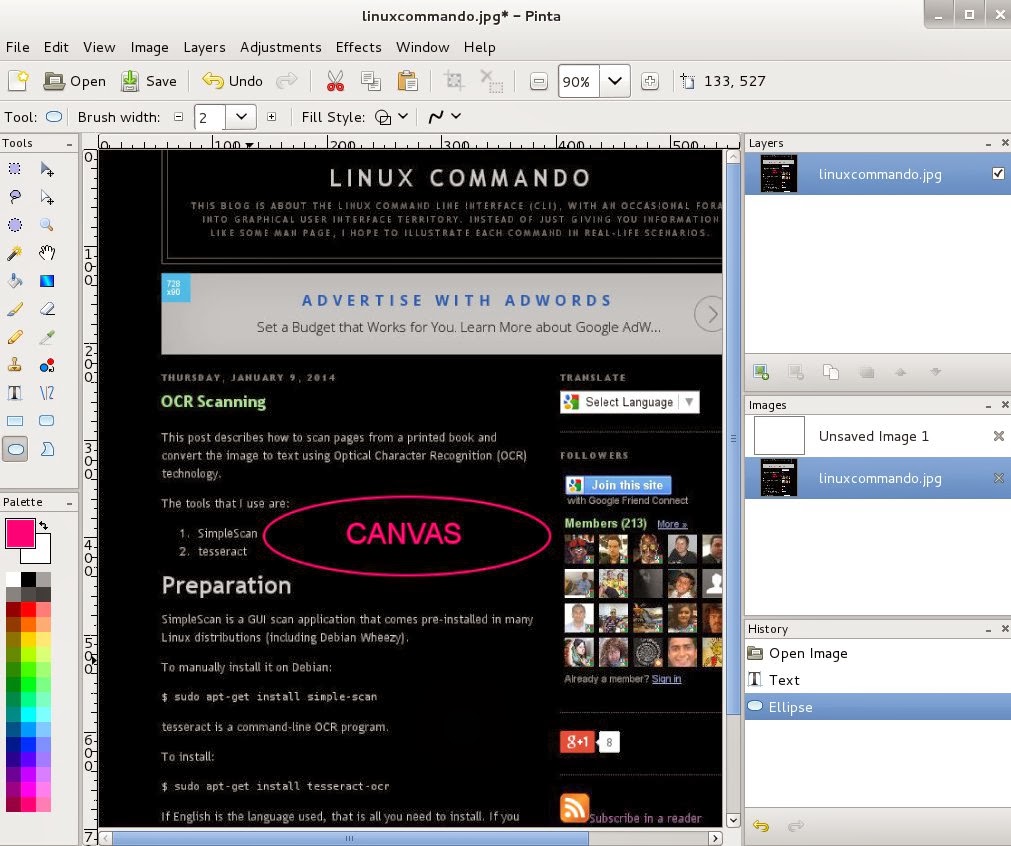
The main draw canvas is sandwiched between 2 columns of tool sub-windows. The left column is organized into Tools and Palette; the right, Layers, Images, and History. The sub-windows are by default docked, but you can make them hidden, or floating. My preference is to keep the default configuration - the most common operations that I need are conveniently located.

The Tools window on the left column has the typical selection tools- rectangle select, ellipse select, lasso select - and geometric shape drawing tools - rectangles, rounded rectangles, ellipses, and freeform shapes. Mousing over a tool icon displays some brief instruction on using the tool. The tools are self-explanatory. But I could not get the lasso select, and the free-form shape drawing tools to work on pinta version 1.3.

The right column houses the very useful History window. Every image edit operation you completed in the current session - Text, Ellipse, etc - is recorded there. Clicking an operation reverts the image to that exact state in its history. If you like the more traditional Redo and Undo features, they are available in the Edit menu.

Occasionally, you may foray into the menus and sub-menus to get at editing functions that are not exposed in the windows. For editing screenshot, I frequent the Image menu that comprises the cropping, rotating, and resizing functions. I find Crop to Selection particularly useful. You first use a selection tool to specify a subset of the original image. Crop to Selection reduces the image to the selected, eliminating everything else.

Pinta is easy to use. So easy that I just shrugged when I realized that this software does not come with a user manual. If you don't know GIMP, I suggest that you start with pinta because you will be productive within minutes. If you have modest image editing requirements, you may never need to graduate to the more powerful GIMP.

Thursday, January 9, 2014

OCR Scanning

This post describes how to scan pages from a printed book and convert the image to text using Optical Character Recognition (OCR) technology.

The tools that I use are:

  1. SimpleScan
  2. tesseract

Preparation

SimpleScan is a GUI scan application that comes pre-installed in many Linux distributions (including Debian Wheezy).

To manually install it on Debian:

$ sudo apt-get install simple-scan

tesseract is a command-line OCR program.

To install:

$ sudo apt-get install tesseract-ocr

If English is the language used, that is all you need to install. If you require another language, you must install additional tesseract language packs. Examples are tesseract-ocr-rus for Russian, tesseract-ocr-deu for German, and tesseract-ocr-fra for French.

OCR Procedure

  1. Scan the pages using SimpleScan.
  2. Save the image.
  3. Run the tesseract command:
    $ tesseract OnWritingWell.jpg out
    Tesseract Open Source OCR Engine v3.02 with Leptonica
    

    The first parameter is the input image filename. The second parameter is the desired basename of the output text file. The default txt extension is added to the basename, e.g., out.txt.

    If the language is not English, you need to specify the language on the command line using a 3-character language code (refer to the tesseract man page). The following command specifies the use of 3 languages: Russian, German and French.

    $ tesseract OnWritingWell.jpg myout  -l rus+deu+fra 
    

Accuracy

In the above example, there were a total of 734 words. Within the output text file, 119 words (16% of total) require some form of manual correction. This roughly translates to 84% OCR accuracy. The sample size is too small to be scientific, or statistically valid. What is the performance that you are getting from OCR?

Wednesday, December 18, 2013

Install latest WordPress on Debian Linux

This blog is built on the Google Blogger platform. My new blog however will switch to WordPress, and most likely be hosted by a third-party web hosting company. For now, I want to install WordPress on my home computer to be the staging server. This is where I experiment with new ideas before I upload the final contents to the production WordPress server.

My home computer runs Debian 7 (aka Wheezy) which includes a WordPress package, albeit a little outdated (3.6.1). This post is an overview of how to install the most recent WordPress release on Debian Wheezy.

The instructions below assume you have root privilege and command line access to the server. If you are using a web hosting company, the instructions will not apply because the web hosting company most likely will provide its own tools (e.g., cPanel).

Software Dependencies

To install and run the latest WordPress release, you need to have the following packages already installed.

  • Apache2
  • MySQL5 (version 5.0 or greater)
  • PHP5 (version 5.2.4 or greater)
  • SMTP server (e.g., exim4)

    Although a SMTP server is not required for installation, WordPress cannot send email without one.

It turns out that Debian Wheezy already includes the above software packages with the proper versions in the distribution. You just need to ensure that they are installed on your system.

To verify if a package is installed, use the dpkg command with -l parameter.

The following example indicates that PHP5 is NOT currently installed:

$ dpkg -l php5*
dpkg-query: no packages found matching php5*

If a package is already installed, the dpkg output will look something like this (edited to fit the screen):

$ dpkg -l mysql*
Desired=Unknown/Install/Remove/Purge/Hold
| Status=Not/Inst/Conf-files/Unpacked/halF-conf/Half-inst/trig-aWait/Trig-pend
|/ Err?=(none)/Reinst-required (Status,Err: uppercase=bad)
||/ Name                  Version             Arch    Description
+++-=====================-===================-=======-====================================
ii  mysql-client          5.5.31+dfsg-0+wheez all     MySQL database client (metapackage)
ii  mysql-client-5.5      5.5.31+dfsg-0+wheez amd64   MySQL database client binaries
ii  mysql-common          5.5.31+dfsg-0+wheez all     MySQL database common files
ii  mysql-server          5.5.31+dfsg-0+wheez all     MySQL database server (metapackage)
ii  mysql-server-5.5      5.5.31+dfsg-0+wheez amd64   MySQL database server binaries 
ii  mysql-server-core-5.5 5.5.31+dfsg-0+wheez amd64   MySQL database server binaries

Apache2

To install Apache2:

$ sudo apt-get install apache2

The Apache module mod_rewrite needs to be enabled. Otherwise, WordPress cannot be configured to have more user-friendly URLs. The exact procedure for enabling the module is covered in a later post.

MySQL5

To install MySQL 5:

$ sudo apt-get install mysql-server mysql-client

PHP5

To install PHP5 and related modules:

$ sudo apt-get install php5 php5-mysql php5-gd php5-curl

Notes:

  • php5-gd is only required if you want to enable CAPTCHA checking in your WordPress deployment.
  • Although php5-curl is not a prerequisite of the WordPress core, it is required by some very popular WordPress plugins such as Google Analyticator.

SMTP Server

exim4 is the default SMTP server on Debian wheezy. However, exim4 is configured out of the box for local email delivery only. A later post outlines the steps to configure exim4 to send email to external email servers through Google Gmail.

Install WordPress

  1. Download the latest WordPress tar-ball or zip file from the WordPress web site.
  2. Decompress the downloaded file to a temporary location on your hard drive.

    The examples below decompress the file to ~/tmp (the tmp sub-directory under your home directory).

    For tar-ball:

    $ tar -C ~/tmp/ -zxvf latest.tar.gz
    

    For zip file:

    $ unzip -d ~/tmp/ latest.zip
    
  3. Create database and database user.

    The following mysql commands create a database named wordpress, and a corresponding database user named wp, who has all privileges for the database. Customize with your own database name, user name, and user password.

    $ mysql -u root -p
    Enter password: 
    mysql> CREATE DATABASE wordpress CHARACTER SET utf8;
    Query OK, 1 row affected (0.01 sec)
    mysql> GRANT ALL PRIVILEGES ON wordpress.* TO 'wp'@'localhost' IDENTIFIED BY 'REPLACE_WITH_YOUR_USER_PASSWORD';
    Query OK, 0 rows affected (0.00 sec)
    mysql> GRANT ALL PRIVILEGES ON wordpress.* TO 'wp'@'%' IDENTIFIED BY 'REPLACE_WITH_YOUR_USER_PASSWORD';
    Query OK, 0 rows affected (0.00 sec)
    mysql> FLUSH PRIVILEGES;
    Query OK, 0 rows affected (0.00 sec)
    
  4. Create configuration file.

    Rename the sample configuration file.

     
    $ cd ~/tmp/wordpress
    $ cp wp-config-sample.php wp-config.php
    

    Edit ~/tmp/wordpress/wp-config.php.

    Locate the following lines, and replace the values with your own values.

    define('DB_NAME', 'wordpress');
    define('DB_USER', 'wp');
    define('DB_PASSWORD', 'REPLACE_WITH_YOUR_USER_PASSWORD');
    
    define('AUTH_KEY', 'put your unique phrase here');
    define('SECURE_AUTH_KEY', 'put your unique phrase here');
    define('LOGGED_IN_KEY',   'put your unique phrase here');
    define('NONCE_KEY', 'put your unique phrase here');
    define('AUTH_SALT', 'put your unique phrase here');
    define('SECURE_AUTH_SALT', 'put your unique phrase here');
    define('LOGGED_IN_SALT', 'put your unique phrase here');
    define('NONCE_SALT', 'put your unique phrase here');
    

    For the security keys and SALTs, replace the values with long, random strings of gibberish. For instance, something like t`DK%X:>xy|e-Z(BXb/f(Ur`8#~UzUQG-^_Cs_GHs5U-&Wb?pgn^p8(2@}IcnCa| is a good choice.

  5. Copy WordPress to the web server's document root directory.

    For Debian Wheezy, the Apache document root directory is located at /var/www. In the example below, I put wordpress under a subdirectory named myblog. The URL of the blog will look like http://localhost/myblog.

    $ sudo mkdir /var/www/myblog
    $ sudo cp -pr ~/tmp/wordpress/*  /var/www/myblog/
    
  6. Change owner/group of WordPress files to the web server user.

    To use the one-click upgrade feature of WordPress after the initial install, the web server must be granted the proper file permissions to update the WordPress-related files.

    First, identify the user under which the Apache web server executes.

    $ ps aux |grep -i apache
    ...
    www-data  7012  0.0  0.1 169576 27472 ?        S    08:59   0:01 /usr/sbin/apache2 -k start
    ...
    

    Then, modify owner and group of WordPress files to that user, www-data.

    $ sudo chown -R www-data:www-data /var/wwww/myblog
    [sudo] password for peter: 
    
  7. Run the install script.

    Open a browser, and enter this URL:
    http://localhost/myblog/wp-admin/install.php

  8. Fill in the information, and click Install.
  9. Login using the credentials you just created.

    The WordPress dashboard appears.

The WordPress web site claims that if you know what you are doing, the install will take only 5 minutes. For Debian Wheezy, given that all the pre-requisite software dependencies are already satisfied by the base distribution, this claim may not be that far from the truth.

Let me know your experience.

Below are my other posts on WordPress: